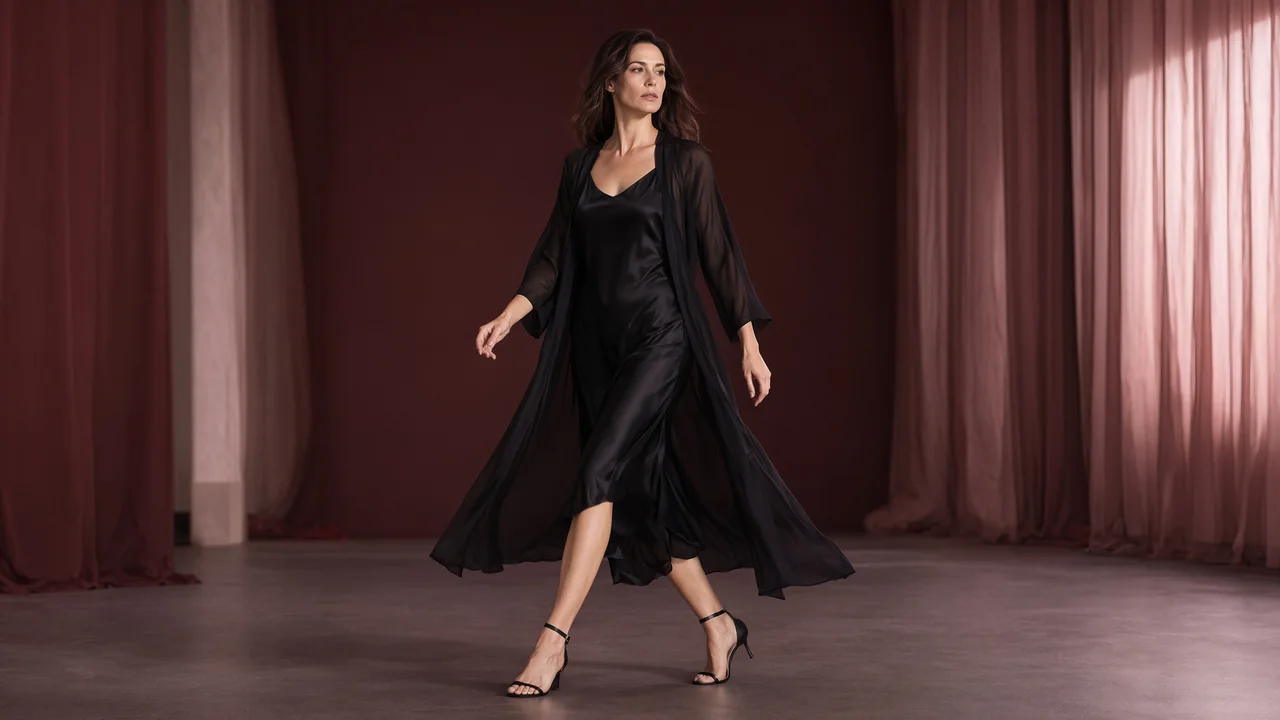
Unlucid AI image-to-video animates a still image using a motion prompt. Your image supplies the opening appearance; your words describe what moves. Upload an image you have permission to process, then choose a model in Studio.
Best for: Movement from a portrait or scene you already have.
Campaign videos generated with Wan 3.0 Spicy from Qwen Image 2.1 images. Create your own scene in Studio; results vary with the selected model and input.
Use the image for appearance, the prompt for movement.
A source frame gives the video a visual starting point. It does not lock every detail: inspect the face, hands and crop as the clip develops.
Open Image to Video in Studio and sign in. Choose a model, read its upload limits and add a source image you have permission to process.
Describe what moves
Ask for a small head turn, environmental movement or a gentle camera push. Use the image for visual detail and the prompt for action. Review output settings and the credit estimate before generating.
Compare the image with the clip
Watch the beginning, middle and end in History. Inspect the face, hands, background and crop against the source. If the scene drifts, reduce the movement or simplify the camera instruction for the next attempt.
Give your image one movement to perform.
Open a motion brief in Studio and add your own source image. The link fills the prompt; you choose the image and decide when to generate.
Prompt structure: What moves + how far + what the camera does
Swipe to compare the scene briefs.
A restrained head turn
Try a small movement before asking for a full performance.
The clearly adult subject makes a small, natural head turn toward the window, then holds the pose. Keep the camera steady and the lighting consistent with the starting image.
What to inspect Inspect the face at the start, middle and end. Reduce the movement if the likeness changes too much.
Keep the subject still while testing subtle environmental motion.
Keep the main subject still. A soft breeze moves the curtain and a few loose strands of hair. Preserve the original lighting direction. A locked camera with no cuts.
What to inspect Watch the background edges and check that the request does not move the entire image as one flat layer.
Use a gentle push-in to test framing without adding a second action.
A slow, gentle camera push toward the subject in the source image. The clearly adult subject holds the original pose. Keep the setting and light steady, with no scene change.
What to inspect Check the final crop and the subject's proportions. A camera request cannot guarantee that every source detail is preserved.
Original writing example, not a model comparison or recorded result.
Before
Animate this portrait beautifully.
After
The clearly adult subject makes one small head turn toward the window. Keep the camera still and the lighting consistent with the source image.
The image already supplies the appearance. The revision uses the prompt for movement and leaves fewer camera instructions competing with it.
Match the movement to what is visible
A waist-up portrait supports a small turn more naturally than a full-body walk. If an image hides hands or crops the subject tightly, a large gesture asks the model to invent those details. Start with the space the image gives you.
Use the prompt for change
Describe the movement you want to add: a glance toward the window, a moving curtain or a slow push-in. State what should stay steady, such as the pose or lighting. Repeating every detail of the image can obscure the action.
Inspect likeness throughout playback
A source frame guides appearance but does not lock identity. Check moments when the head turns, a hand crosses the face or the camera approaches. Reduce the action if the face or proportions change in ways you cannot use.
Image-to-video content support follows the selected model's rules. The source must also meet its technical requirements, and you need the rights and adult consent for the intended use. An accepted file type alone does not make every image permitted.
What image formats, sizes and counts are accepted?
The uploader accepts JPEG, PNG and WebP. Select a model in Studio to see its file-size and image-count limits before choosing a file. Technical acceptance does not establish permission to use an image.
What should I write in an image-to-video prompt?
Describe what changes from the source: subject movement, environmental motion or the camera. Start with one event. For a portrait, a small head turn with a steady camera gives you a clear movement to inspect.
Will the video keep the same face and clothing?
The image can guide those details, but preservation is not guaranteed. Faces, hands, clothing and framing may change as the clip develops. Review the complete result rather than judging only the opening frame.